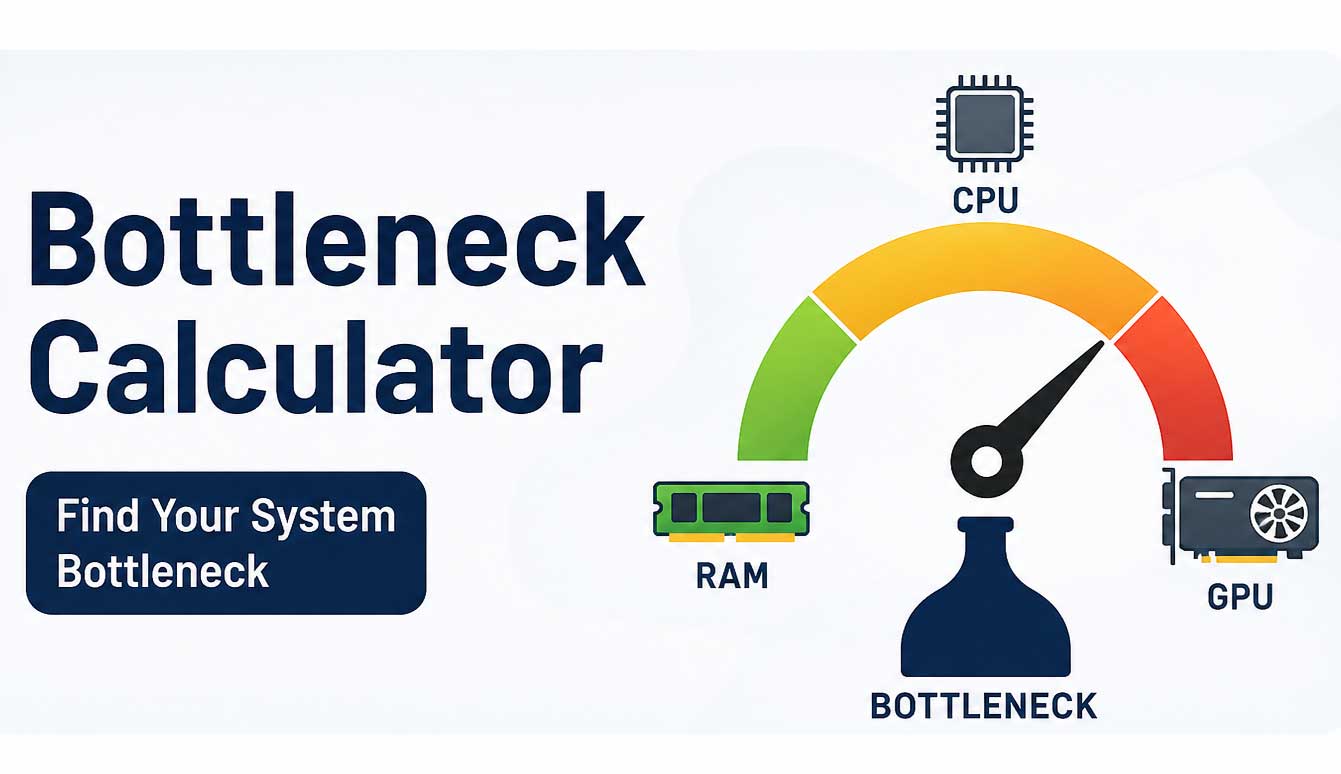
Bottleneck Calculator – Check CPU & GPU Bottleneck Percentage.
Bottleneck Calculator
A Bottleneck Calculator helps you estimate whether your CPU and GPU are well matched for gaming or other demanding tasks. When one component is significantly stronger than the other, the slower component can become a performance limit. This does not necessarily mean your PC is faulty; it simply means one part may not be able to keep up with the workload.
Our Bottleneck Calculator gives you a quick way to check a CPU and GPU combination before buying new hardware or upgrading an existing PC. Select your processor, graphics card, and resolution to get an estimated result.
What Is a PC Bottleneck?
A bottleneck occurs when one component of a computer becomes the main limitation on overall performance. In gaming, the CPU and GPU work together to produce each frame. If the CPU cannot prepare the required game data quickly enough, the GPU may remain underused. If the GPU cannot render frames quickly enough, the CPU may have additional performance available while the graphics card reaches its limit.
The important thing to understand is that a bottleneck is not a fixed condition. The same CPU and GPU combination can behave differently depending on the game, resolution, graphics settings, frame-rate target, drivers, cooling, and other system conditions.
How Does a Bottleneck Calculator Work?
A Bottleneck Calculator compares the relative performance of the selected CPU and GPU and estimates which component is more likely to limit performance under the selected conditions. Resolution is especially important because increasing resolution generally places more work on the graphics card.
For example, a CPU and GPU combination that appears CPU-limited at 1080p may become much more GPU-limited at 1440p or 4K. This is one reason why a bottleneck percentage should be treated as an estimate rather than a guaranteed measurement of FPS loss.
How to Use the Bottleneck Calculator
Using the calculator is straightforward. Start by selecting the processor and graphics card you are considering. Then choose the resolution you normally use for gaming.
- Select your CPU.
- Select your GPU.
- Choose your gaming resolution, such as 1080p, 1440p, or 4K.
- Run the calculator to view the estimated result.
- Use the result as a guide when evaluating your PC build or upgrade.
For the most useful result, choose the resolution and hardware that you actually plan to use rather than testing a combination that does not match your intended setup.
CPU Bottleneck vs GPU Bottleneck
A CPU bottleneck and a GPU bottleneck are different situations, although both can affect gaming performance.
What Is a CPU Bottleneck?
A CPU bottleneck occurs when the processor becomes the limiting component. This can happen in games that perform a lot of simulation, artificial intelligence, physics, or other CPU-heavy calculations. It can also become more noticeable when you are targeting very high frame rates at a lower resolution.
One possible sign is that the GPU is not being fully utilized while one or more CPU cores are heavily loaded. However, utilization numbers alone do not prove a bottleneck because different games and applications distribute workloads differently.
What Is a GPU Bottleneck?
A GPU bottleneck occurs when the graphics card is the main performance limit. This is common when playing at higher resolutions or using demanding graphics settings such as high-quality shadows, ray tracing, or other visual effects.
High GPU usage is not automatically a problem. In many gaming situations, having the GPU close to full utilization simply means the graphics card is doing the work it was designed to do.
Does a Bottleneck Mean Your PC Is Bad?
No. Every computer has a limiting component under a particular workload. The goal is not necessarily to achieve a perfect 0% bottleneck. Instead, you want a hardware combination that makes sense for the games, resolution, frame rate, and budget you have.
For example, pairing a powerful graphics card with a modest CPU may make sense if you mainly play at a high resolution where the GPU is expected to handle most of the workload. Likewise, a strong CPU can be useful for competitive games where a high frame rate is more important than maximum graphics quality.
Why Does Resolution Matter?
Resolution changes the amount of graphical work required from the GPU. At 1080p, a system may produce very high frame rates, which can make CPU limitations more noticeable. At 1440p and 4K, the graphics card generally has more rendering work to perform.
| Resolution | Typical Consideration |
|---|---|
| 1080p | CPU limitations can become more noticeable at high FPS. |
| 1440p | CPU and GPU balance becomes highly dependent on the game and settings. |
| 4K | GPU performance generally becomes more important because of the heavier rendering workload. |
These are general tendencies rather than strict rules. A particular game can behave differently depending on its engine and workload.
How to Check for a Bottleneck in a Real Game
A calculator can provide a useful starting estimate, but you can also monitor your PC while playing the games you care about. Look at GPU utilization, CPU utilization, frame rate, and frame-time behavior using a trusted monitoring application.
If the GPU remains heavily utilized while delivering the frame rate you expect, the graphics card may be the primary limit. If GPU utilization repeatedly drops while the CPU or particular CPU cores remain heavily loaded, the processor may be limiting performance.
It is better to observe several minutes of actual gameplay rather than making a decision from one short measurement. Different areas of the same game can place very different demands on the CPU and GPU.
What Causes a CPU or GPU Bottleneck?
Several factors can influence which component becomes the limiting factor. Hardware specifications are only part of the picture.
- Game type: Simulation, strategy, MMO, and competitive games can place substantial demands on the CPU.
- Graphics settings: High-quality visual effects can increase GPU workload.
- Resolution: Higher resolutions generally increase the amount of work performed by the GPU.
- Target FPS: Very high frame-rate targets can make CPU limitations more noticeable.
- RAM: Insufficient or poorly configured memory can affect overall system performance.
- Cooling: Thermal throttling can reduce CPU or GPU performance.
- Background applications: Other programs running at the same time can consume system resources.
- Drivers and software: Driver versions and game updates can change performance.
Should You Upgrade the CPU or GPU?
The calculator result should not be the only reason to buy new hardware. First consider which component is limiting performance in the games and applications you actually use.
If your GPU is consistently the limiting component and you want higher graphics quality or frame rates, a stronger graphics card may provide the biggest improvement. If your CPU is limiting frame rates in CPU-heavy games, upgrading the processor may make more sense.
Before replacing a CPU, also check motherboard compatibility, BIOS support, RAM compatibility, cooling requirements, and power requirements. A CPU upgrade is not always as simple as installing a faster processor.
Is a 0% Bottleneck Possible?
A calculator may display a result close to zero when the selected CPU and GPU are well matched under its calculation model. However, this should not be interpreted as proof that the computer has no possible performance limitation.
Real-world performance changes from game to game and from one workload to another. A combination can be well balanced in one game and show a different limitation in another.
Is a High Bottleneck Percentage Always Bad?
Not necessarily. A bottleneck percentage is an estimate of imbalance under particular assumptions. It is not the same thing as saying that you will lose exactly that percentage of FPS.
If the calculator reports a relatively large imbalance, use it as a reason to investigate the combination more closely. Check the games you play, your resolution, target frame rate, graphics settings, and real-world hardware utilization before deciding whether an upgrade is worthwhile.
Bottleneck Calculator for Gaming PCs
Gaming performance depends heavily on how the CPU and GPU work together. A graphics card may perform differently depending on the processor behind it, while the same processor can behave differently depending on the GPU and resolution.
Our Bottleneck Calculator can help you compare different CPU and GPU combinations before building or upgrading a gaming PC. Instead of looking only at individual component specifications, you can evaluate the combination as a complete system.
For the most useful result, test the hardware at the resolution you actually intend to use and remember that the final gaming experience can vary between different games.
Example of a CPU and GPU Bottleneck
Imagine a gaming PC with a high-performance GPU and a considerably weaker CPU. At 1080p with a high FPS target, the processor may struggle to prepare frames quickly enough. In that situation, the GPU may not reach its full potential.
Now imagine using the same hardware at 4K with demanding graphics settings. The GPU has substantially more rendering work to perform, so the limitation can shift toward the graphics card.
This example shows why there is no single bottleneck result that applies to every game and every resolution.
Frequently Asked Questions
What is a bottleneck in a PC?
A bottleneck is a component or part of a workload that limits overall performance. In gaming PCs, the CPU and GPU are the most common components discussed when evaluating performance balance.
What is a CPU bottleneck?
A CPU bottleneck happens when the processor becomes the main limitation for a particular game or workload. It can be more noticeable in CPU-intensive games, lower resolutions, or situations where very high frame rates are targeted.
What is a GPU bottleneck?
A GPU bottleneck occurs when the graphics card is the main limitation. It is common at higher resolutions and demanding graphics settings where the GPU has more rendering work to perform.
Is a GPU bottleneck bad?
Not necessarily. A GPU being fully utilized while producing the desired gaming performance can be completely normal. The important question is whether the GPU is limiting performance below your target.
Can the same PC have different bottlenecks?
Yes. The limiting component can change depending on the game, resolution, graphics settings, frame-rate target, and system conditions. A PC may be more CPU-limited at 1080p and more GPU-limited at 4K.
Does a bottleneck percentage equal FPS loss?
No. A bottleneck percentage from a calculator is an estimate of relative imbalance. It should not be interpreted as a guaranteed percentage of FPS loss.
How accurate is a Bottleneck Calculator?
A calculator can be useful for comparing hardware combinations, but it cannot reproduce every real-world condition. Actual performance can vary because of games, drivers, temperatures, RAM configuration, background software, graphics settings, and other factors.
Should I upgrade my CPU or GPU first?
Upgrade the component that is consistently limiting the performance you want. Check your actual games and settings before buying new hardware rather than relying on a calculator result alone.
Final Thoughts
A Bottleneck Calculator is a useful planning tool for anyone building, buying, or upgrading a gaming PC. It can help you identify a potentially mismatched CPU and GPU combination and understand how resolution may change the balance.
Remember that a bottleneck is not automatically a problem. The best hardware combination depends on your games, resolution, target FPS, graphics settings, and budget. Use the calculator as a starting point, then compare the result with real-world performance before making an upgrade decision.
Calculate your CPU and GPU bottleneck percentage and see which component may limit your PC performance.

.png)
Leave A Comment